Subscription Saved, but No Server Entries Appear
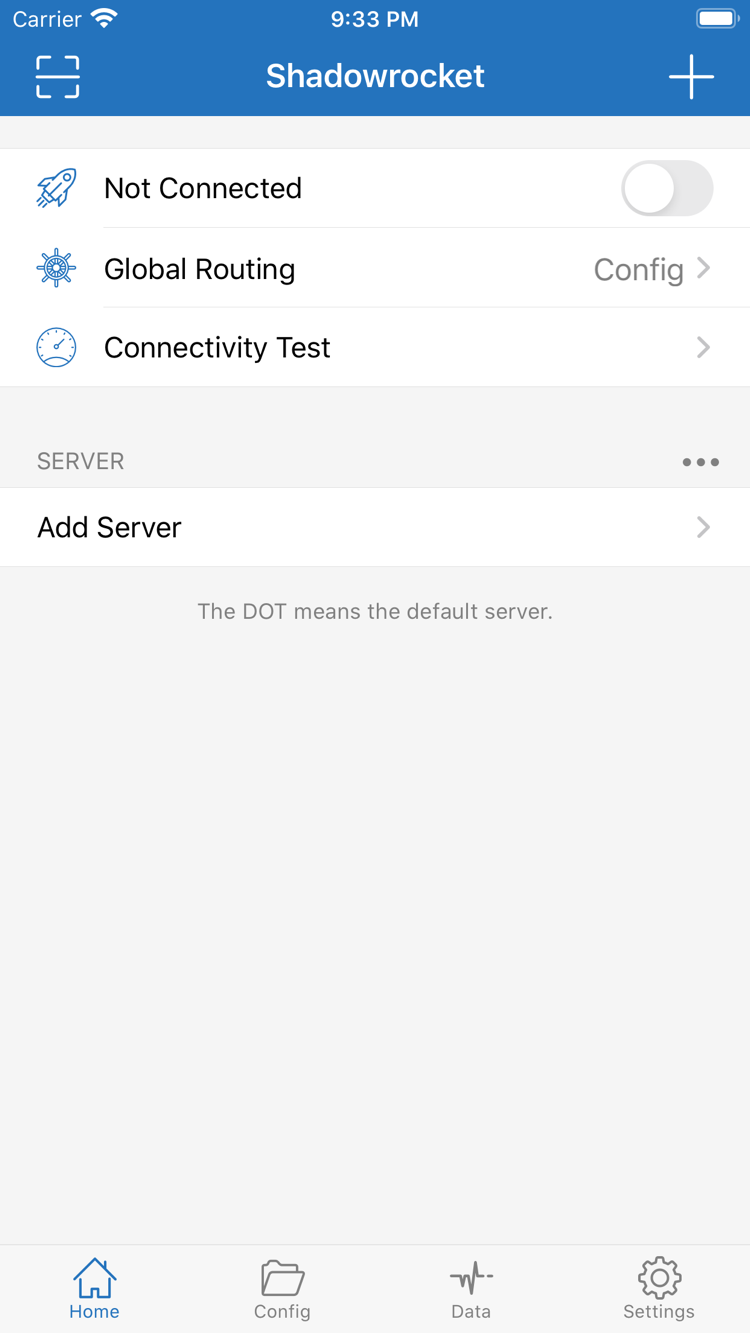
Check whether the subscription URL was truncated or contains an accidentally copied space, and whether your provider requires a newly generated link. Saving a Subscribe entry only stores the address in the client. If the remote request fails or returns unexpected content, there may still be no usable entries under SERVER. Check that your current network can reach the subscription service, then confirm your subscription is still valid. Don’t share a full URL containing credentials in a public support request.
Server Appears, but the Test Fails
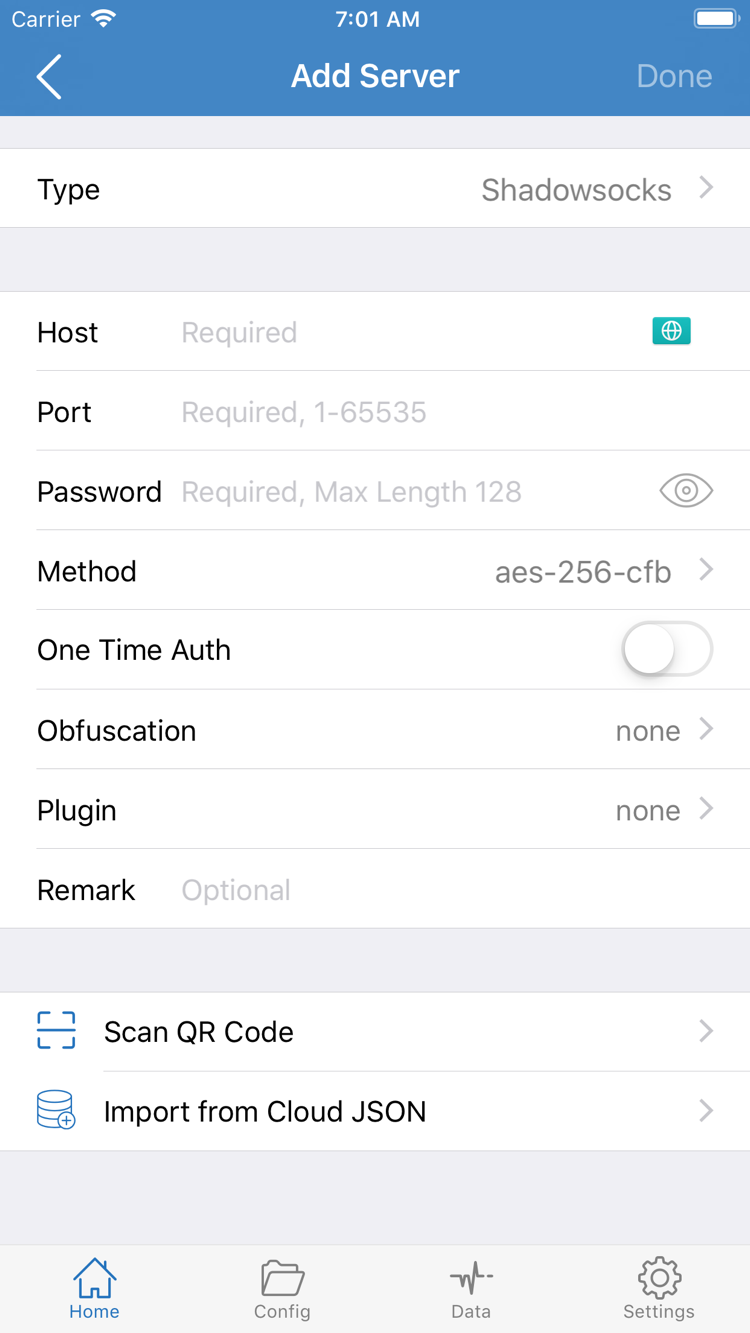
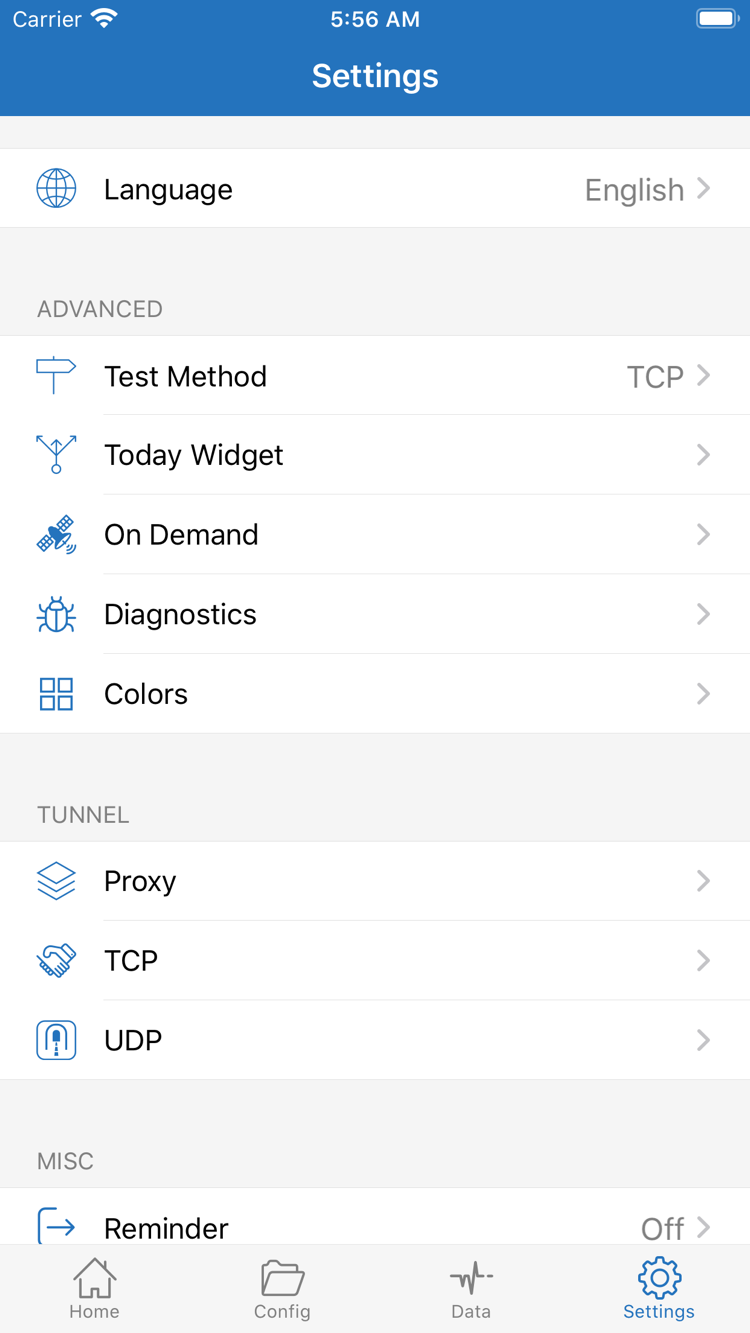
For a manually added entry, first check Type, Host, Port, and authentication fields, then confirm TLS and transport settings match your original details. For a subscription entry, try updating it and confirm the selected server is still valid. In Settings, check Test Method to see whether the current test depends on a real request; readings from different methods aren’t directly comparable. If results change on Wi-Fi versus Cellular, note the difference as a clue about the network rather than changing all the server settings at once.
Switch Turns On, but Webpages Won’t Load
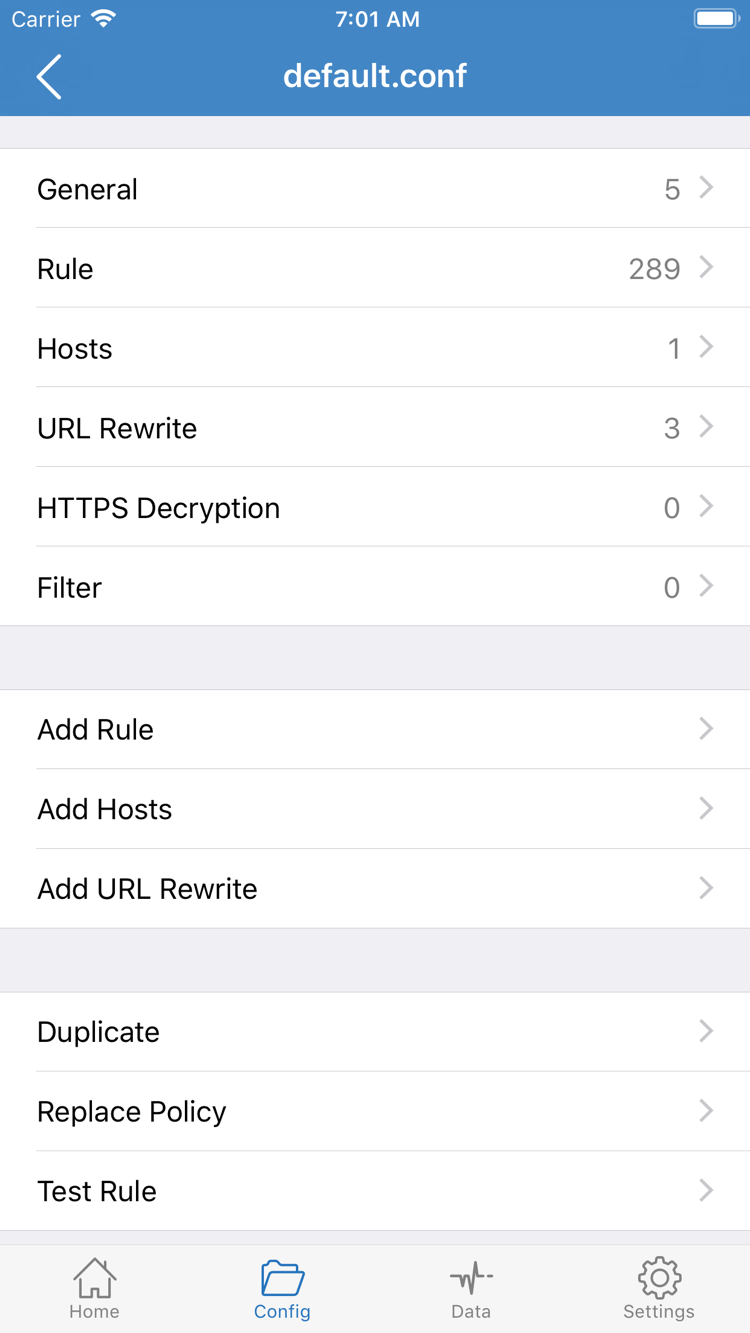
First compare Proxy and Config as described in Step 4. If only Config fails, check the active configuration and rules. If both modes fail but the server test responds, check DNS resolution, the destination address, TLS, and transport settings. An incorrect device date or time can also affect secure connections. Changing DNS repeatedly isn’t a fix; save the original value and change one setting at a time, testing the same destination each time. For details, see the FAQ categories on rule-based routing and troubleshooting.
Connection Restarts After You Turn It Off, or Changes When You Switch Networks
Open Settings and check On Demand. It can trigger a connection when configured conditions are met, so it’s possible to turn the connection off manually and have it start again later. For initial troubleshooting, note the current On Demand settings, temporarily disable the relevant triggers, and retest with the manual switch. Once the basic connection is stable, restore On Demand and check its conditions one at a time. An automatic reconnect doesn’t mean your server settings failed to save.
Keep Troubleshooting Notes Minimal
Diagnostics in Settings can help with further investigation. Proxy, TCP, and UDP settings affect more detailed network behavior; you don’t need to change them to establish a first connection. If you need help, note which step failed, the current routing mode, whether you’re on Wi-Fi or Cellular, the test method, and the exact error message. Before sharing diagnostics, remove subscription URLs, Passwords, UUIDs, and any other identifying credentials. Don’t post your full configuration.
Reinstalling the app shouldn’t be your first step. It may erase your existing configuration and useful troubleshooting clues without changing the status of the remote service. Save your configuration and original server details, then troubleshoot by failure stage. For a systematic guide to subscriptions, rule order, and common settings, continue to the complete Shadowrocket handbook.